
Table fields provide an inline tabular display of repeating data, along with the ability to add & edit rows in the Table via a dedicated row page.
Users add rows via a dedicated "Add New Row" button, and can edit existing rows by tapping on the displayed Table row.
You can think of a Table as being a special kind of repeatable Page that can be placed within your regular Page or an Excel table where each line is a set of repeated questions (columns).
Table Field Basics & Navigation
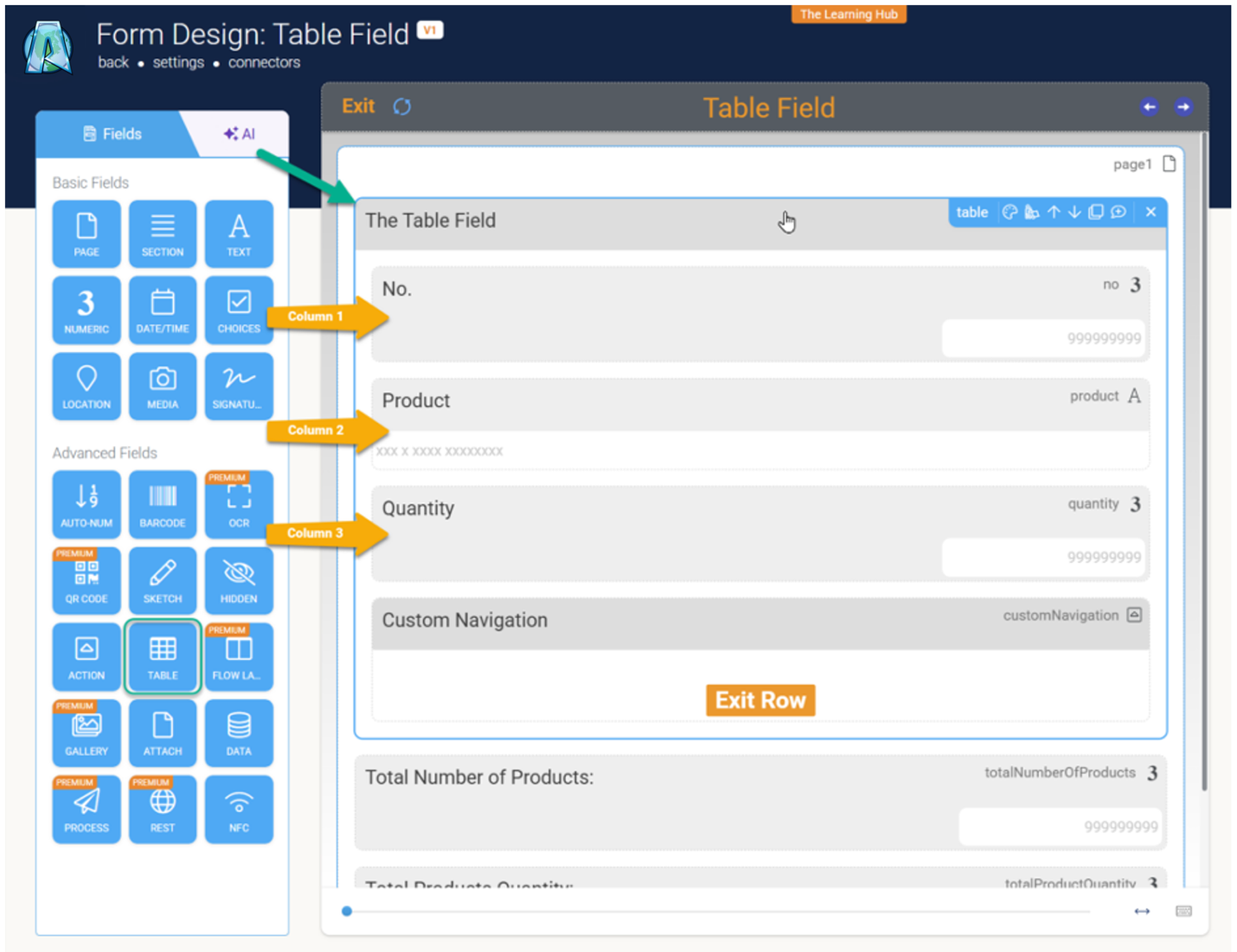
The Table field captures repeating data sets in a clean, tabular format. The form fields you place inside the Table automatically become your columns. The layout is responsive, displaying up to three columns on phones and six on tablets, with horizontal scrolling for wider datasets. Users can add entries using the default “New Row” button, which opens a dedicated entry page, or you can enable direct inline editing.
Key Customization Properties
You can tweak the Table field to fit your exact workflow using these core properties:
Property | Function |
Edit in Table Display | Allows users to update cell values directly on the grid without opening a new page. |
Disable Table Display | Hides specific fields from the column view while keeping their data intact. |
New Row Button | Customizes the text, icon, and background of the ‘Add Row’ button. |
Show Search Bar | Toggles the visibility of the built-in table search feature. |
Read-Only | Fields nested in the Table automatically inherit this state if enabled on the Table itself. |
Data Sources & Formulas
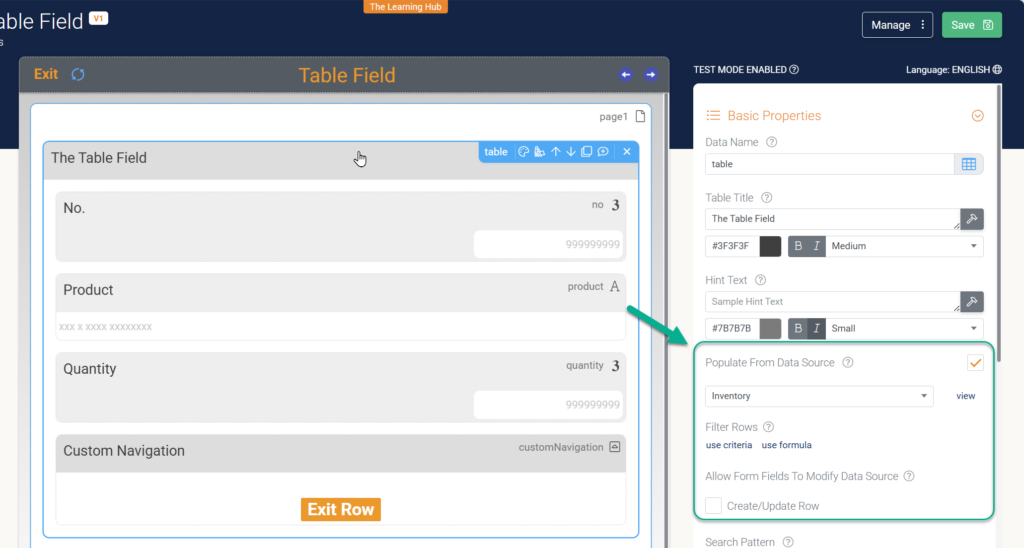
You can automatically populate a Table using an existing Data Source (up to 250 rows). By checking Populate From Data Source and using the Bind To Data Source Column property on specific fields, you can pre-fill checklists or orders. If Create/Update Rows is enabled, user edits will sync back to the Data Source.
Learn more: Creating, Updating & Deleting Data Source Rows
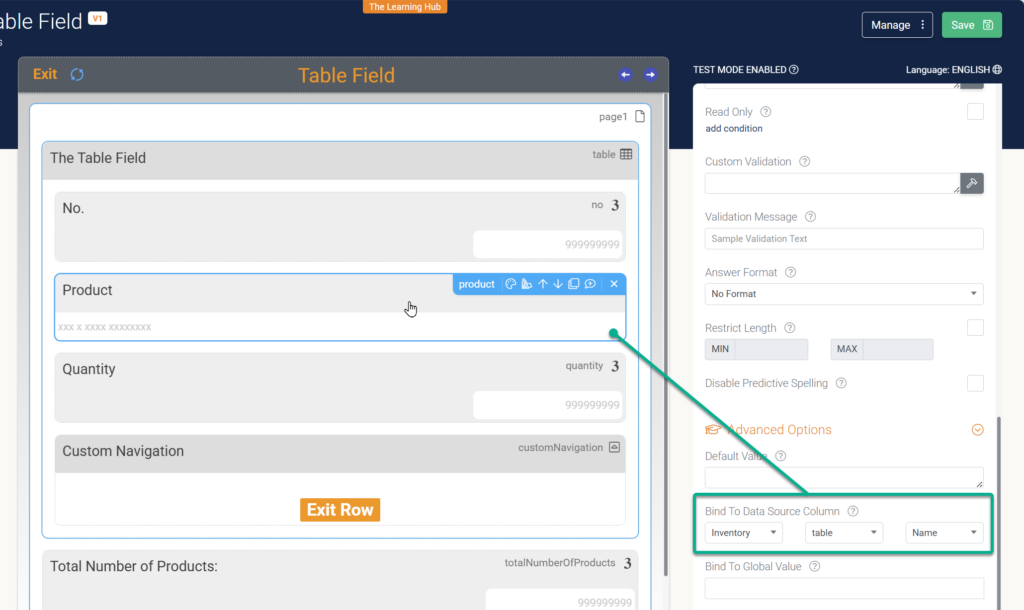
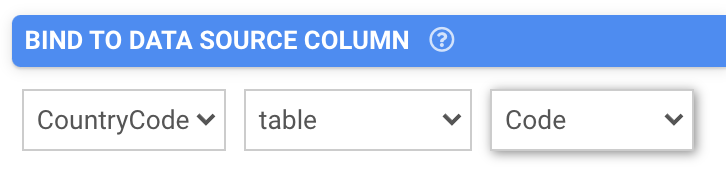
Bind To Data Source Column
Column 1 | Column 2 | Column 3 |
Select data source. | Select field linked to data source. | Select data source column. |
Repeatable Formula
To manipulate repeatable data, use these specialized formulas:
- PRIOR('field_name', occurrences): Fetches previous row values (used inside the table).
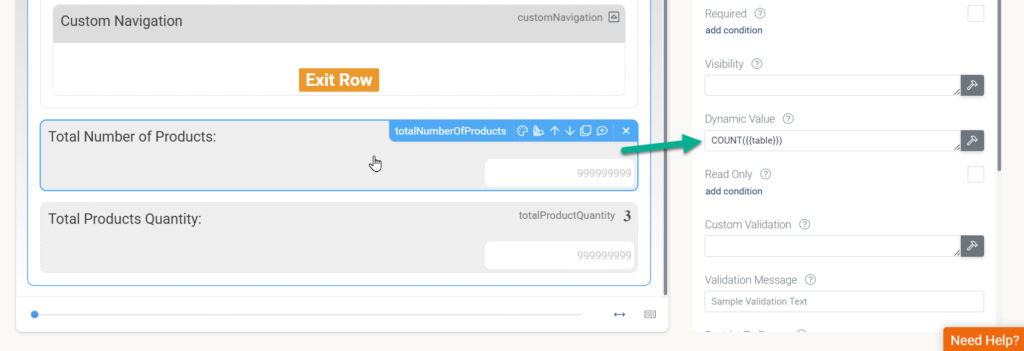
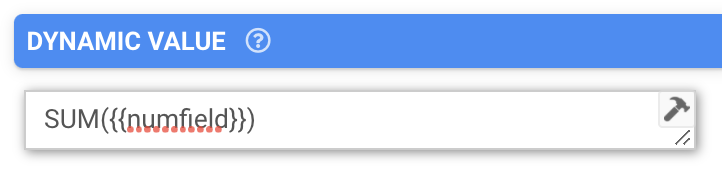
- SUM({{field_name}}): Adds up a numeric field across all rows (used outside the table).
- JOIN('separator', {{field_name}}): Combines text from all rows (used outside the table).
Learn more: Formula Cheat Sheet
Current Platform Limitations
- Tables cannot be placed inside repeatable Page fields (especially for Data Template outputs).
- Image and media fields will not display as visible table columns.
- Dynamic Value references directly to a Table’s Data Source are unsupported; you must use field binding.
- Toggling a populated Table’s visibility off and on will wipe any unsaved, previously captured row edits.
Table Property Basics
The columns of your Table are defined by the Form fields that you place within the Table field when using the Form designer.
By default, the Table will display columns for each inner field, based on the order the fields appear within the Table field design.
The background color, font size and other aspects of these inner fields are incorporated to the column display of the Table.
You can choose to exclude fields from being displayed as columns via the "Disable Column Display" property found on all inner Table fields.

In this way you can choose which fields should act as columns in the Table's display.
The app automatically restricts the maximum number of columns displayed based on the device size.
For phones, tables are limited to displaying a maximum of 3 columns. On tablets, the app allows up to 6 columns.
Tables also provide other configuration options - for example you can customise the default "Add New Row" button as desired.
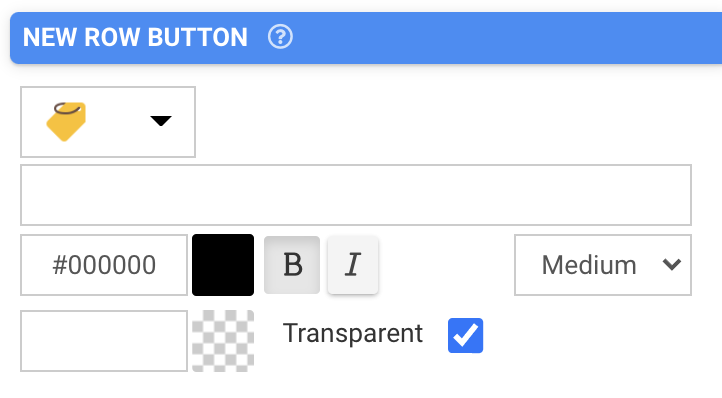
The "New Row" button appears at the bottom of the Table display on the app, allowing users to add rows to the Table.
When the button is tapped by the app user, the app navigates to a special row page which displays the fields you added into the Table design.
Once the user has filled in one row, they can navigate back to the main Form page or can navigate forward to add another row to the Table.
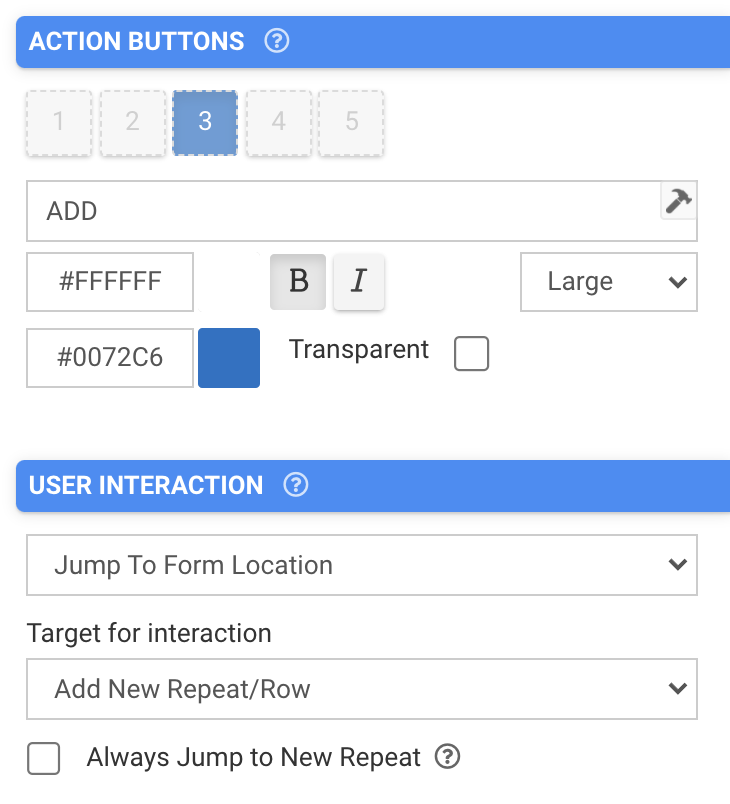
In the Table you can add an Action Button with the User Interaction set to Jump To Form Location and the target for interaction to Add New Repeat/Row. This will allow the user to easily add a new row to their Table.
Using Formula Functions with Tables
As mentioned above, the Table field can be thought of as being a special kind of repeatable Page.
This means that repeat-specific formula functions can be used with Table fields.
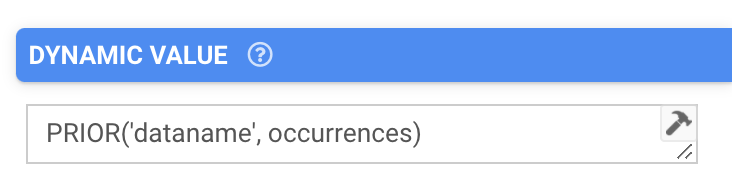
For example, you can copy forward values from the previous Table row via the PRIOR('fieldname') function.
You can also use SUM('field') and other such functions in fields outside the Table to perform aggregate calculations on Table fields. SUM('field') sums a number field across all repeats/rows of a Page/Table. It is useful for totaling values captured - e.g. an order line total.
Pre-populating Tables
Table fields can be pre-populated via our Task API and via inbound field parameters passed in via an "Open Screen" interaction launched from a prior Screen.
Tables now be auto-populated from a Data Source. Select Populate From Data Source, choose your Data Source and add your filters.
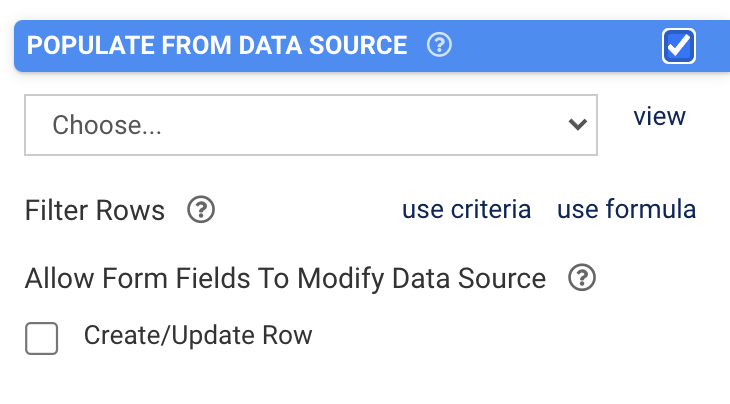
This feature automatically fills this Table with rows from a Data Source. It is very useful for providing a pre-populated list of items for scenarios such as checklists, stock-takes, orders or a bill of materials (BOM).
Use filters on the Data Source to dynamically reload the Table based on other field values.
NOTE: We currently support populating a maximum of 250 Data Source rows into a Table.
If rows (after any filters are applied) exceed this maximum, then only the first 250 rows will populate the table.
Users can also add and update Data Source rows via the Table. Simply ensure you use the 'Bind to Data Source Column' property on target Table fields to link fields with Data Source columns.
Current Table Limitations
Tables have some restrictions that should be noted when considering your Form design:
- Tables placed within repeatable Pages are not supported, in particular for Data Template outputs
- Image/media fields do not currently display as columns
- Dedicated totaling is not currently available on Tables, though this is likely to be added in the future
Go to the top.